On behalf of the Nominating Committee, I’m pleased to share the slate of candidates for the 2026 board election. Every active member organisation is invited to submit a ballot to elect the incoming board class.
We’re providing a summary of the board’s July 2026 meeting. The July board meeting is our only in-person meeting. The board gathers for two days of strategic thinking and long-range planning, as well as conducting annual board business. This year, we focused on allocating surplus funds we have on hand to invest in a three-year project to redesign the content system. In a related discussion, we decided to lower content registration fees starting in 2027 because we’ve had a demonstrated history of generating surpluses, exceeding what we need to run Crossref. We also discussed the board structure, as part of our regular review of stakeholder governance. And we conducted annual board business, such as approving the audited financial statements and reviewed our risk register and mitigation plans.
The resolutions are available on the dedicated section of our website, which also lists the members of the Board and offers further information about our governance.
We also managed to squeeze in watching a World Cup game over dinner.
Starting today, funder names deposited in Crossref metadata without an identifier will be matched to ROR IDs, to support an open and connected Research Nexus. Funding information is an increasingly important part of the scholarly record. The improved matching strategy supports researchers, funders, institutions, and meta-researchers, who rely on that information to understand how research is supported and what outcomes that support produces.
Strengthening Scholarly Publishing in Africa is a collaborative webinar series bringing together ASSAf, Crossref, DOAJ, EIFL, and PKP to share practical guidance, resources, and approaches for strengthening the publishing ecosystem in the region. This series responds to the growing interest in open access, digital publishing, stronger editorial practices, and greater visibility of research publishing across Africa. Each partner organisation has long experience of building that capacity in the area of their expertise. In this series, we’re coming together to offer a more holistic learning experience to the community of African publishers, putting different aspects of the publishing process in their broader context.
Setting up your iThenticate v1 account (admins only)
Documentation Menu
Setting up your iThenticate v1 account (admins only)
This section is for Similarity Check account administrators using iThenticate v1. You need to follow the steps in this section before you start to set up your users and share the account with your colleagues.
If you are using iThenticate 2.0 rather than iThenticate v1, there are separate instructions for you.
Not sure if you’re using iThenticate v1 or iThenticate 2.0? More here.
Your personal administrator account in iThenticate v1
Once Turnitin has enabled iThenticate v1 for your organisation, the main editorial contact provided on your application form will become the iThenticate account administrator. As an administrator, you create and manage the users on your account, and you decide how your organisation uses the iThenticate tool.
To start with, you need to login to iThenticate and set your password.
Log in to your administrator account (v1)
Start from the link in the invitation email from noreply@ithenticate.com with the subject line “Account Created” and click Login
Enter your username and single-use password
Click to agree to the terms of the end-user license agreement. These terms govern your personal use of the service. They’re separate from the central Similarity Check service agreement that your organisation has agreed to.
You will be prompted to choose a new password
Click Change Password to save.
How do you know if you’re an account administrator?
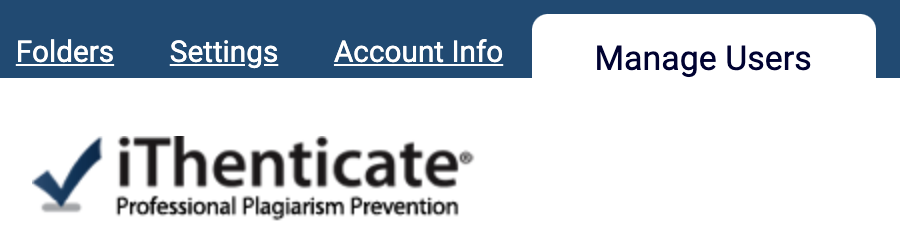
Once you’ve logged in, you will only be able to see the Manage Users tab if you’re an account administrator.
So if you can’t see Manage Users or Users, you’re not an account administrator, and you can skip ahead to the user instructions for iThenticate v1.
Updating your personal email address or password
Changing your email address or updating your password is the same for admins and other users. There’s more information in the user instructions for iThenticate v1.
Page maintainer: Kathleen Luschek Last updated: 2022-July-15